00 · Getting started
Find your bearings and start reading
What you will learn
In this chapter · 4 topics
Steps
On screen / Top bar

The top bar gathers tools you can return to from any page. On a small screen they sit in the shared menu.
1. Choose language and edition
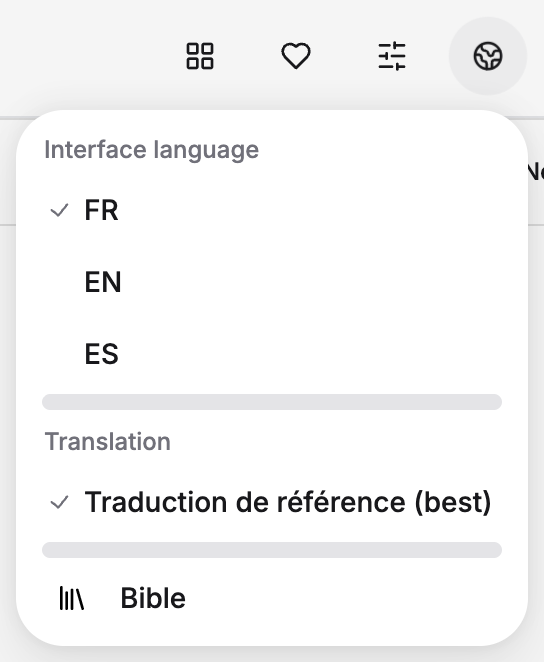
In the wide header, select the globe. On a small screen, open Menu, then Language and library. Here you can choose the app’s language and an available edition.
- Interface language — the language of menus, buttons, and tips: French, English, or Spanish.
- Edition / Translation — the available biblical text and related resources. If BEST is the only option, selecting it confirms the current edition without changing it.
On screen / Language choice
Try FR: the same page opens in French and the panel closes. Reopen the language selector and return to EN. The options are FR, EN and ES. Changing language also selects a corresponding edition, so check the language of the text as well as the button labels.
On screen / Traditions
The letters V, M, G, S above the verses mark ancient textual traditions within the edition. We will meet them in “Traditions”.

Try it: open Edition. If the list is collapsed, select the current edition’s name and choose BEST. Then open Bible, choose Genesis, and select chapter 1.
2. Open the help center
Help is available without signing in. Open the help center and go to
the documentation. In the sidebar, expand Study tools, then choose
Search. Use the article’s contents to go straight to Find a word in
the Bible. On screen / Help center Articles are grouped by section. For example, Search is under Study
tools. The page contents take you to the part of the article you need.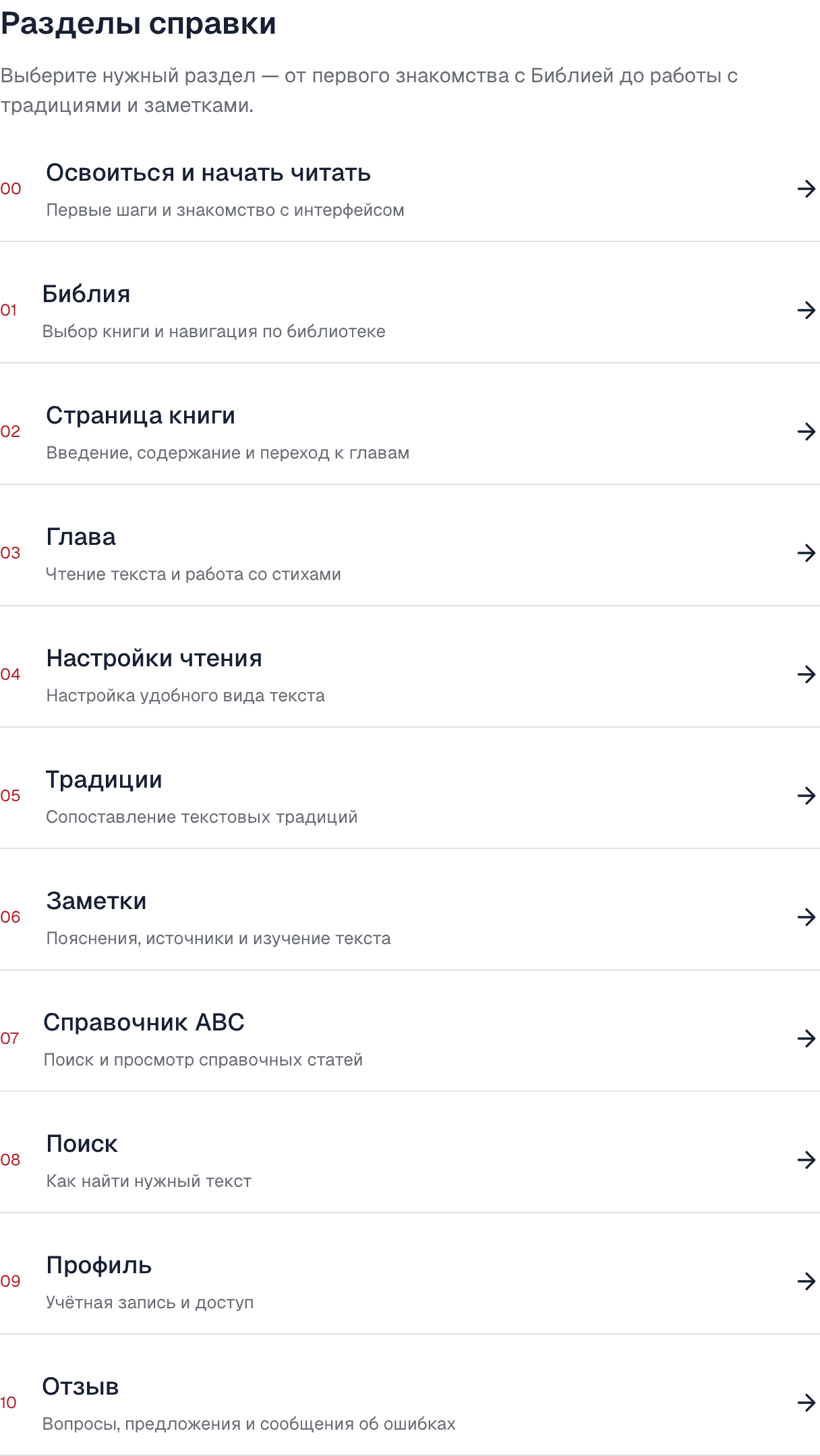
3. Discover Assistant 2.0
The assistant will offer short sequences of actions: choosing an edition, opening a chapter, exploring traditions or finding an explanation. The planned learning paths will follow three stages:
- Choose a section, then a specific learning path.
- Go to the starting screen. If the feature requires an account, sign in and resume at the same step.
- Use the highlighted element. A step will be completed when its intended result is achieved, rather than after a set time or a click on “Next”.
Each path will have a status: Not started, In progress or Mastered. Completing a path will correspond to one skill and one main achievement; its individual steps will be shown separately.
You will be able to pause a path and return to the current step. Restarting it will begin a new attempt while keeping the achievement. Resetting a section or all progress will require confirmation and will not change the Bible data.
Guest progress will be saved in the browser, then in the profile after signing in. Mastered skills will be combined without duplicates. If an action is unavailable, the assistant will explain whether you need to sign in, open another page or retry loading. An error will not complete a step.
4. Choose a light or dark theme
- Click the sliders icon in the top bar: “Reading settings”.
- In the “Theme” section, choose “Default”, “Light”, or “Dark”.
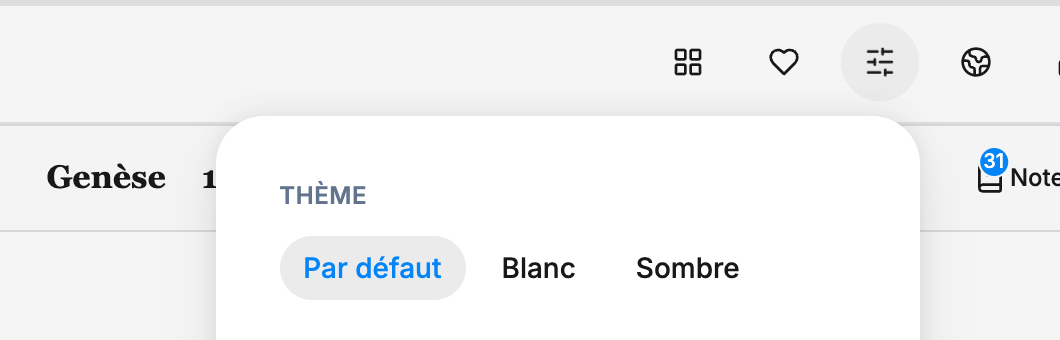
Theme selector in reading settings · French interface
- The theme applies at once. Close settings and keep reading. Your choice is saved in this browser.
Light theme
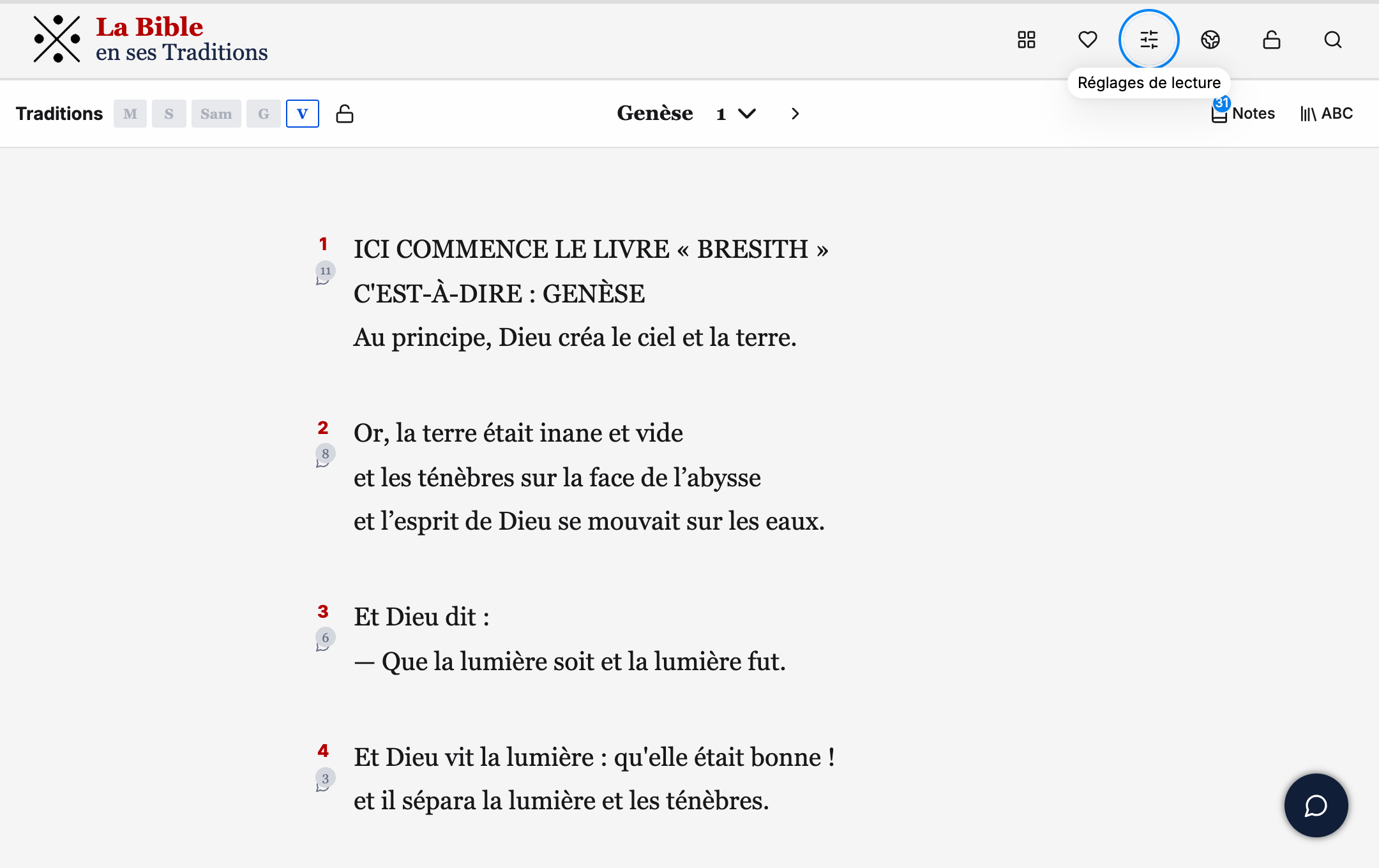
Dark theme
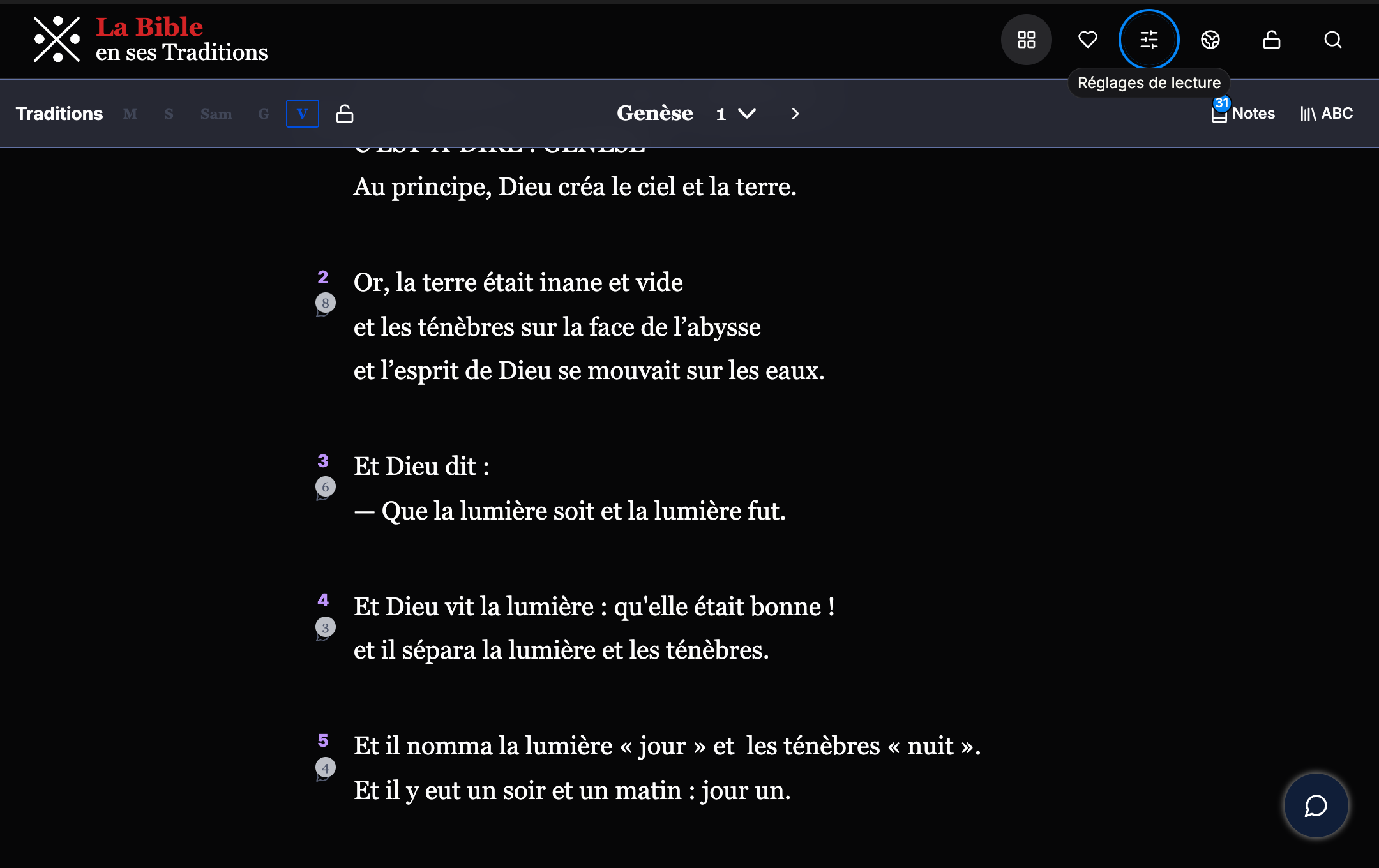
Try it: open settings, choose Dark, then return to the theme that was active before the exercise — Default in this example. Close settings and continue reading.